Google Sheets에 TokenInsight에서 암호화폐 데이터를 가져오는 방법을 알려주는 매우 간단한 튜토리얼입니다.
이 글은 Google Sheets를 사용하여 TokenInsight에서 암호화폐 데이터를 얻는 방법을 소개합니다. 여기서 설명하는 방법은 프로그래밍 지식이 거의나 전혀 필요하지 않으므로 코드를 작성하는 방법을 모르더라도 Google Sheets에서 TokenInsight의 암호화폐 데이터를 쉽게 가져올 수 있습니다.
필요한 도구:
공식 TokenInsight 웹사이트(https://www.tokeninsight.com/))를 엽니다.
웹페이지의 오른쪽 상단에 위치한 "로그인" 버튼을 클릭합니다.
아직 TokenInsight 계정이 없는 경우, "가입" 버튼을 클릭하여 이메일 주소로 새 계정을 생성합니다. 이미 계정이 있는 경우에는 로그인합니다.
로그인 후에 마우스를 오른쪽 상단으로 이동하여 "API 키"를 클릭합니다.
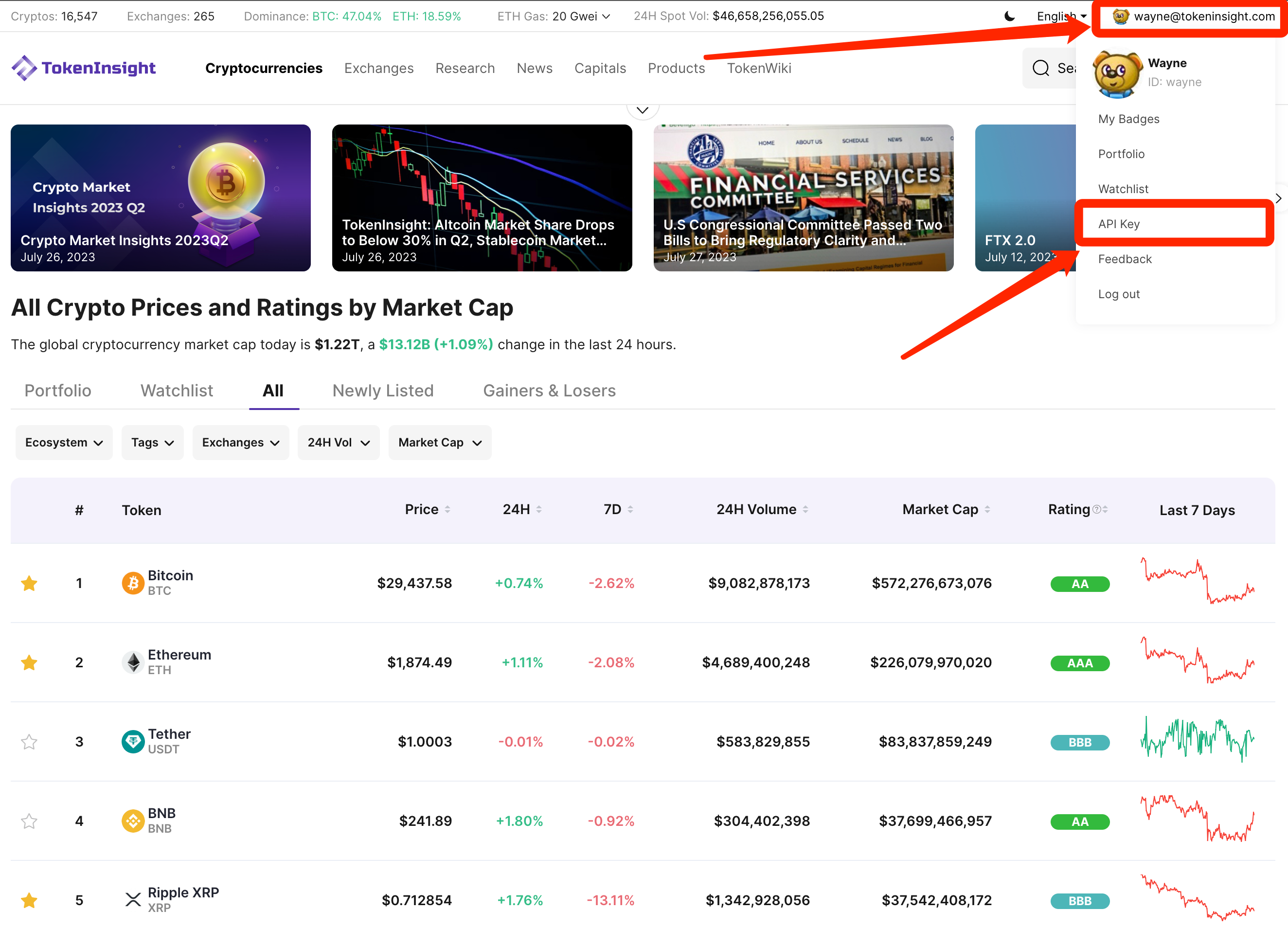
이제 개인 센터에 들어와서 여기서 API 키를 찾을 수 있습니다.
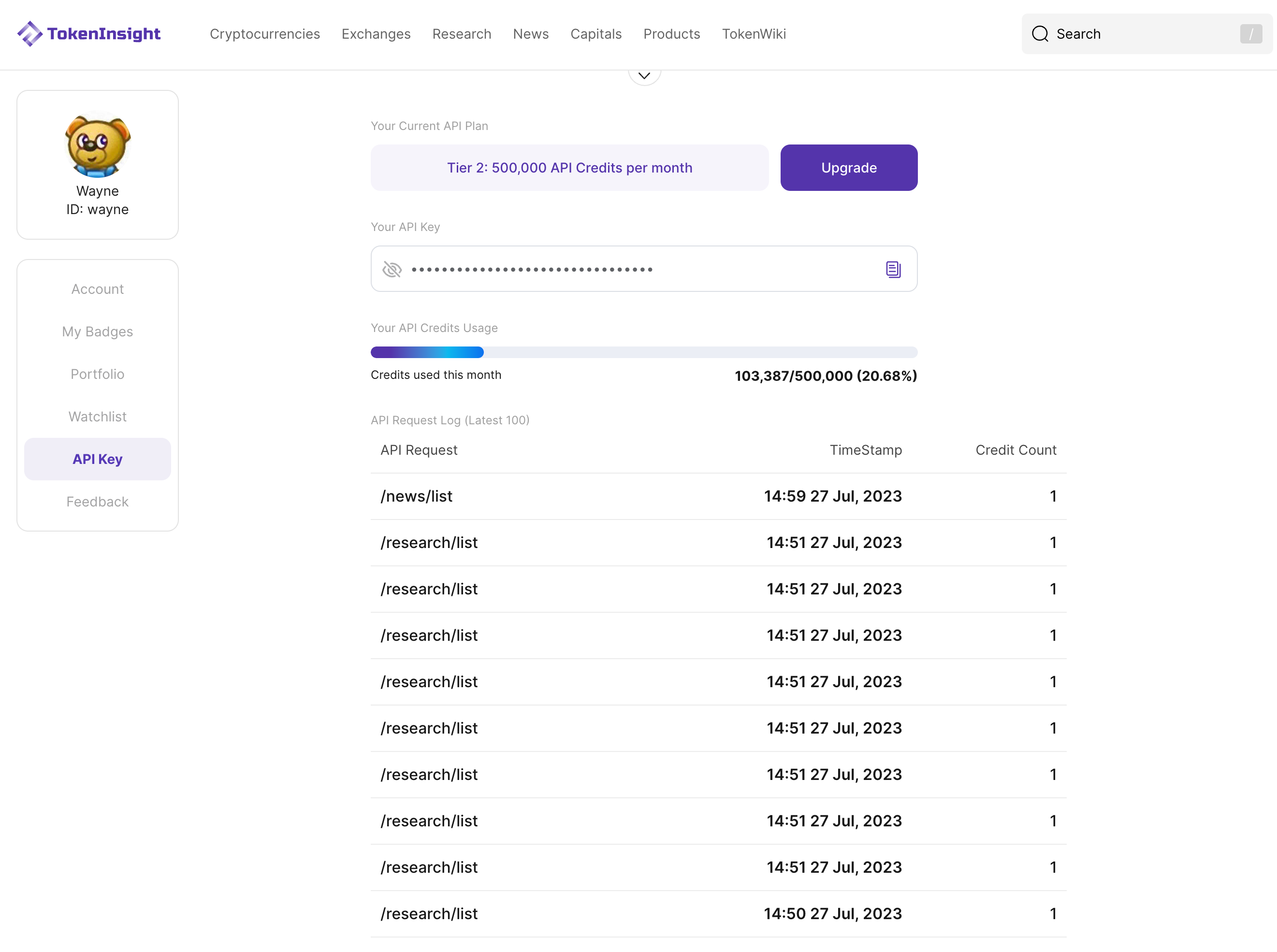
개인 센터에서 첫 번째 부분은 API 티어 레벨입니다. 등록된 사용자는 무료로 API를 사용할 수 있으며, 매월 사용자당 5,000개의 API 크레딧을 제공합니다.
두 번째 부분에서는 API 키가 별표로 표시됩니다. 눈 아이콘을 클릭하면 키가 표시되고, 오른쪽에 있는 작은 아이콘을 클릭하여 복사합니다.
그 바로 아래에서는 현재 달의 API 키 사용량과 기록을 볼 수 있습니다.
이렇게하여 TokenInsight API의 API 키를 성공적으로 얻었습니다.
Google Sheets에 추가 플러그인을 설치하려면 다음 단계를 따릅니다:
Google Sheets를 엽니다.
시트 상단의 도구 모음에서 "확장 기능"을 클릭합니다.
드롭다운 메뉴에서 "애드온"을 선택합니다.
시트 오른쪽에 사이드바가 나타납니다. 사이드바 하단에 있는 "애드온 가져오기" 옵션을 클릭합니다.
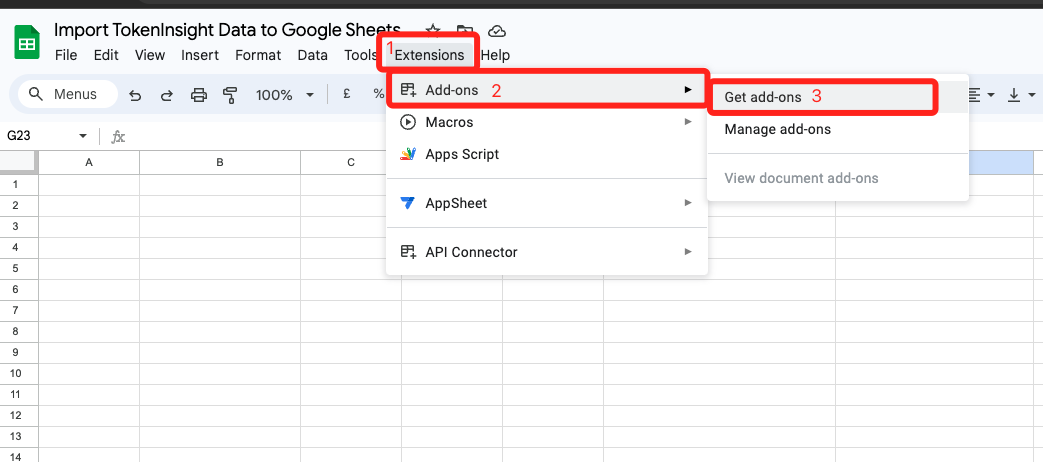
이렇게 하면 Google Workspace Marketplace로 이동하게 되며, 다양한 애드온을 찾아볼 수 있습니다.
'API Connector'를 검색하세요.
플러그인을 찾으면, 자세한 내용을 보려면 해당 플러그인을 클릭하세요.
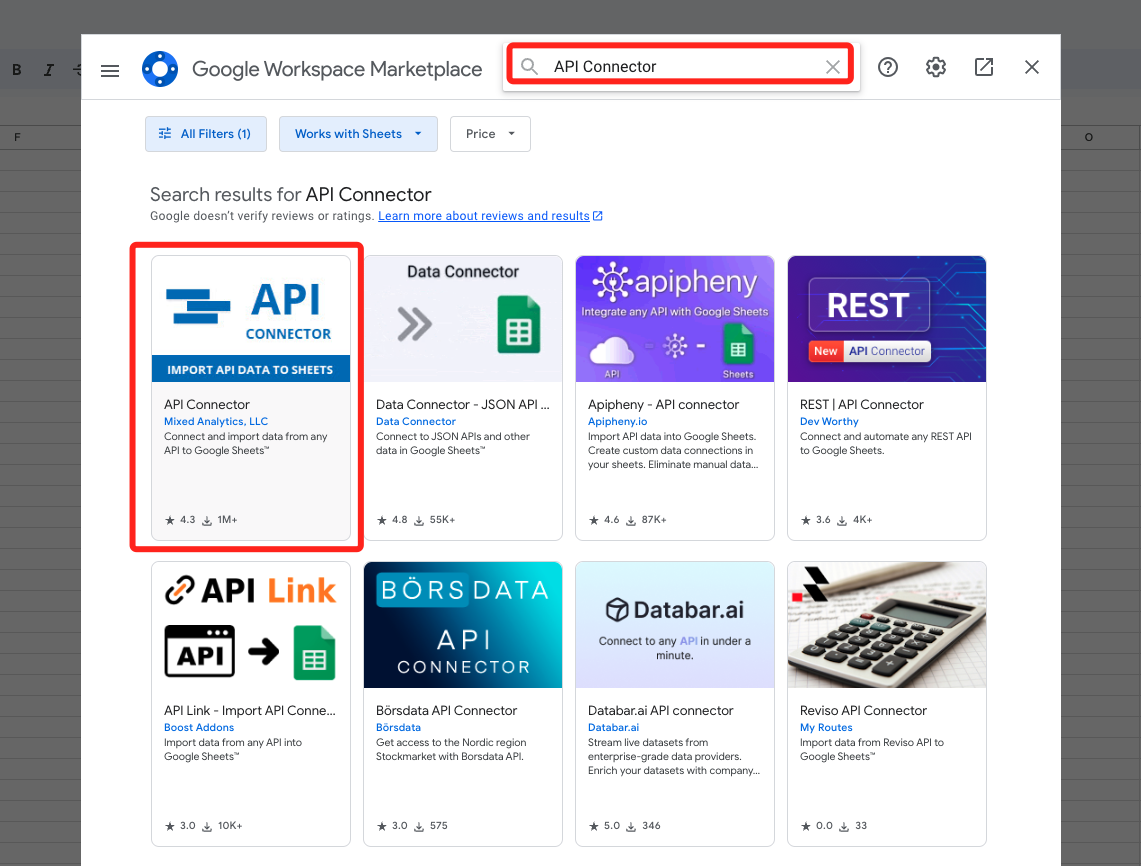
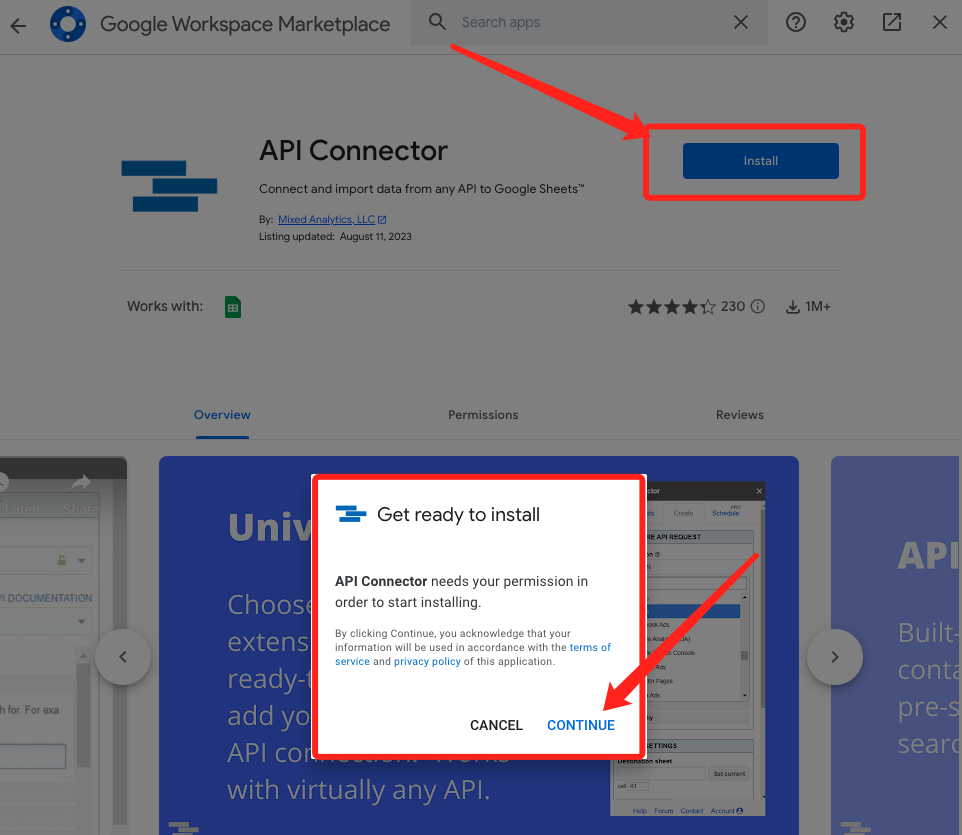
"설치" 버튼을 클릭하여 플러그인을 Google Sheets에 추가하세요.
약관을 따르고 Google Sheets와 통합하는 데 필요한 권한을 부여하세요.
설치가 완료되면 플러그인이 Google Sheets에서 사용할 수 있게 됩니다.
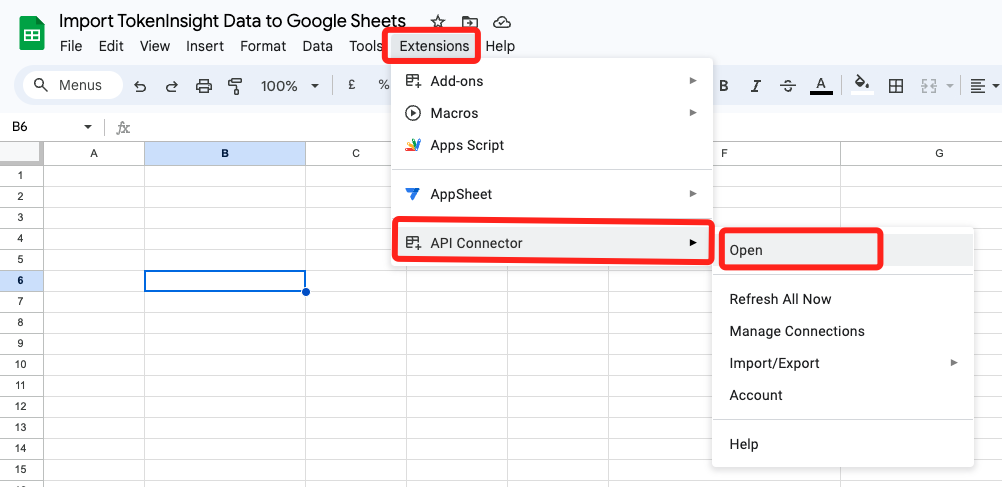
방금 설치한 API Connector를 클릭하세요.
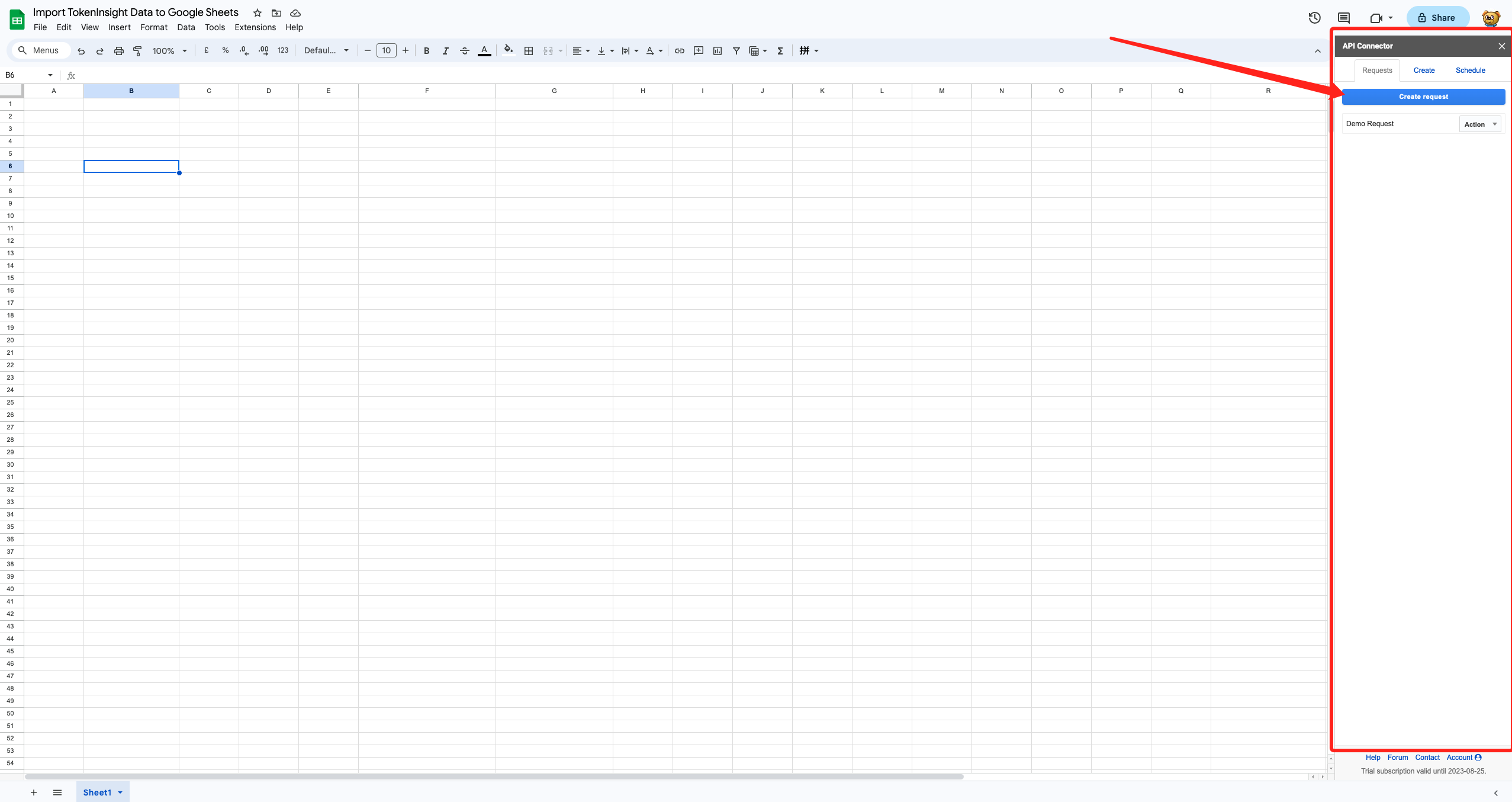
Google Sheets의 오른쪽에 표시됩니다. 이 단계에서 "요청 생성"을 클릭하여 새로운 데이터 요청을 만들 수 있습니다.
"요청 생성"을 클릭한 후, 아래에 채워야 할 관련 매개변수가 나와 있으며, 이미 명확하게 설명되어 있습니다.
다음으로, 요구 사항을 지정하면 됩니다. 첫 번째 상자에 TokenInsight API 문서에서 얻은 주소를 입력하고, 두 번째 상자에 등록 중에 얻은 API 키를 입력하세요. 이러한 세부 정보를 채우면 데이터를 검색할 수 있습니다.
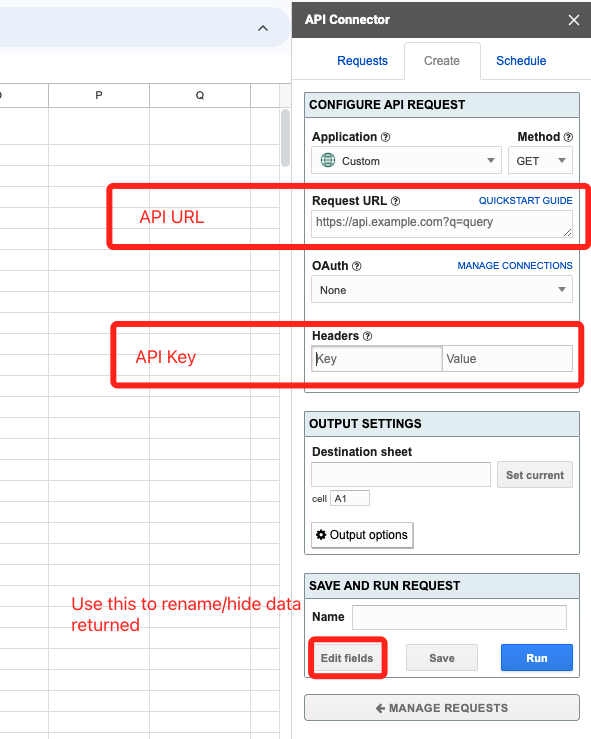
TokenInsight API 문서에 언급된 URL에서 암호화폐 목록을 검색하는 예제를 사용해 보겠습니다: https://tokeninsight-api.readme.io/reference/get_coins-list. 문서에 따르면, 암호화폐 목록을 가져오기 위한 URL은 https://api.tokeninsight.com/api/v1/coins/list. 입니다. 따라서, 이 URL을 첫 번째 상자에 입력해 보세요.
헤더에는 채워야 할 두 가지 필드가 있습니다. 첫 번째 필드에는 고정된 값으로 "TI_API_KEY"라고 입력하세요. 두 번째 필드에는 API 키를 입력하세요.
출력에 사용할 위치를 선택할 수 있습니다. 마지막으로 "실행"을 클릭하면 아래 이미지에 표시된 내용을 받게 됩니다.
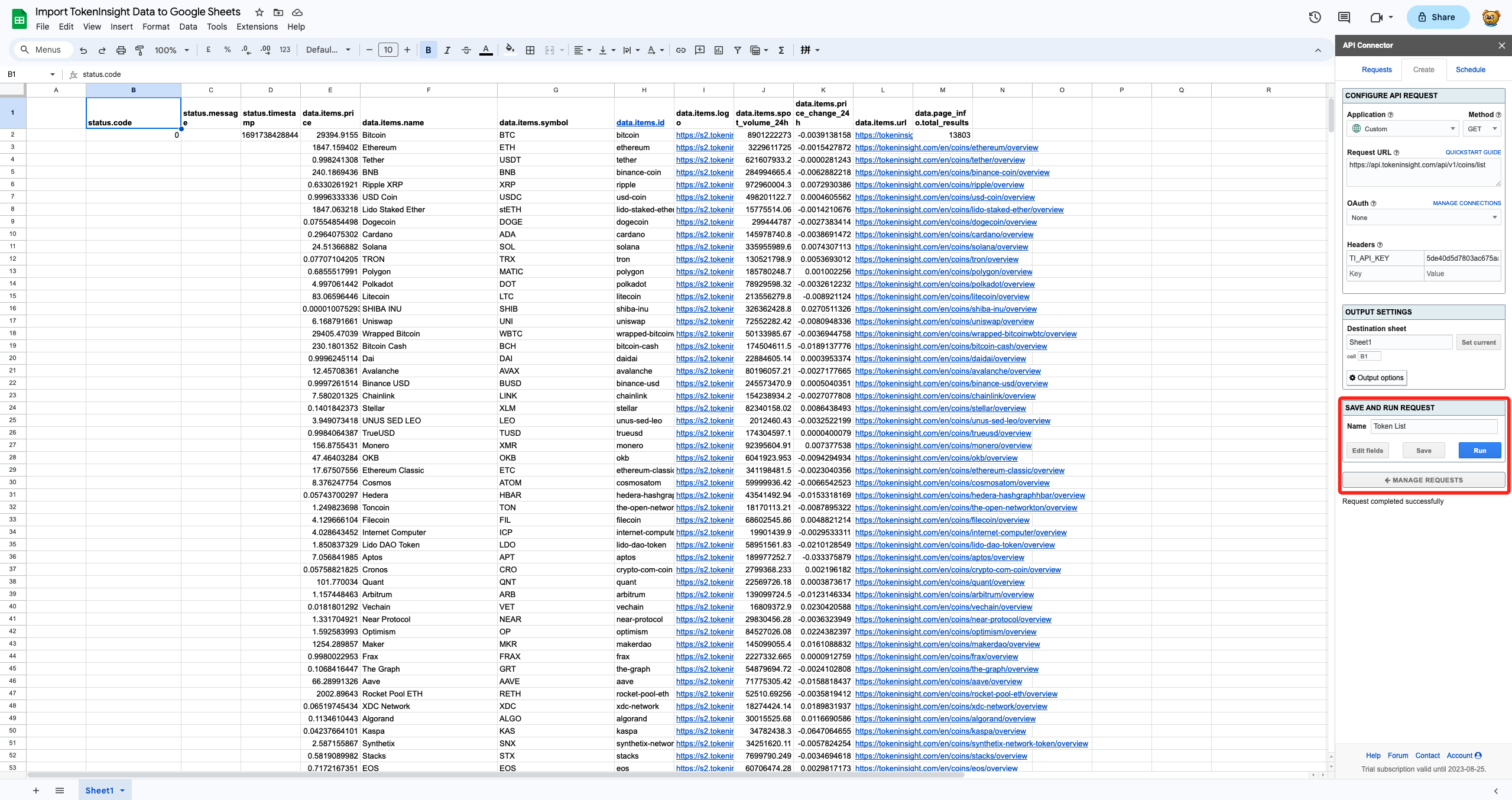
각 열의 첫 번째 행에 있는 열 이름이 충분히 간단하지 않거나 특정 행을 숨기려면, "필드 편집" 섹션에서 "실행" 버튼 왼쪽에 위치한 옵션을 사용하여 이를 조정할 수 있습니다.
"필드 편집"을 클릭하여 열 이름을 수정할 수 있습니다.
ames to make them more user-friendly. Additionally, you can choose to hide specific rows by adjusting the settings in this section.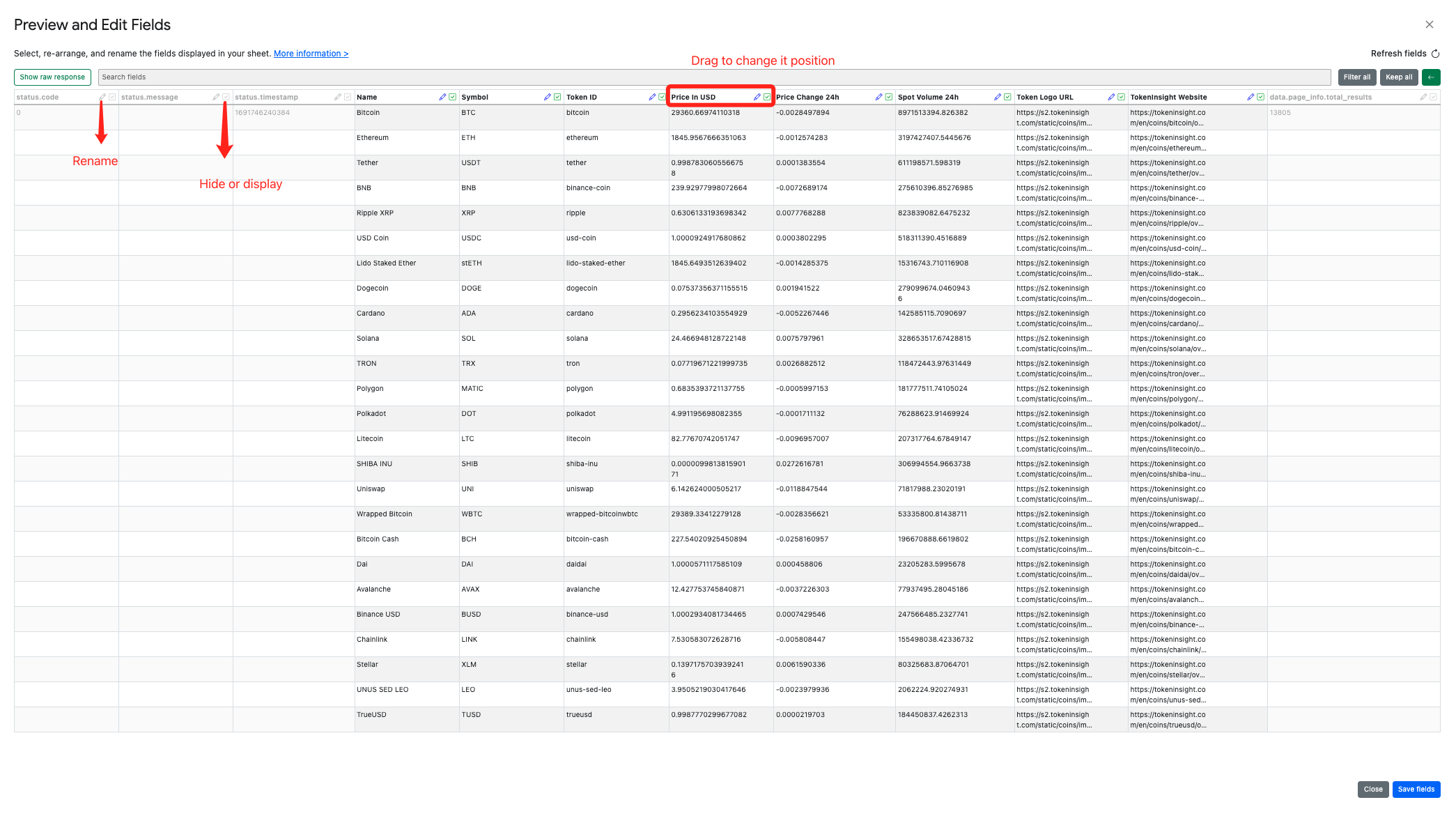
That's great! By hiding unnecessary columns, modifying names, and rearranging the order, you can easily obtain the list of cryptocurrencies in the desired format.
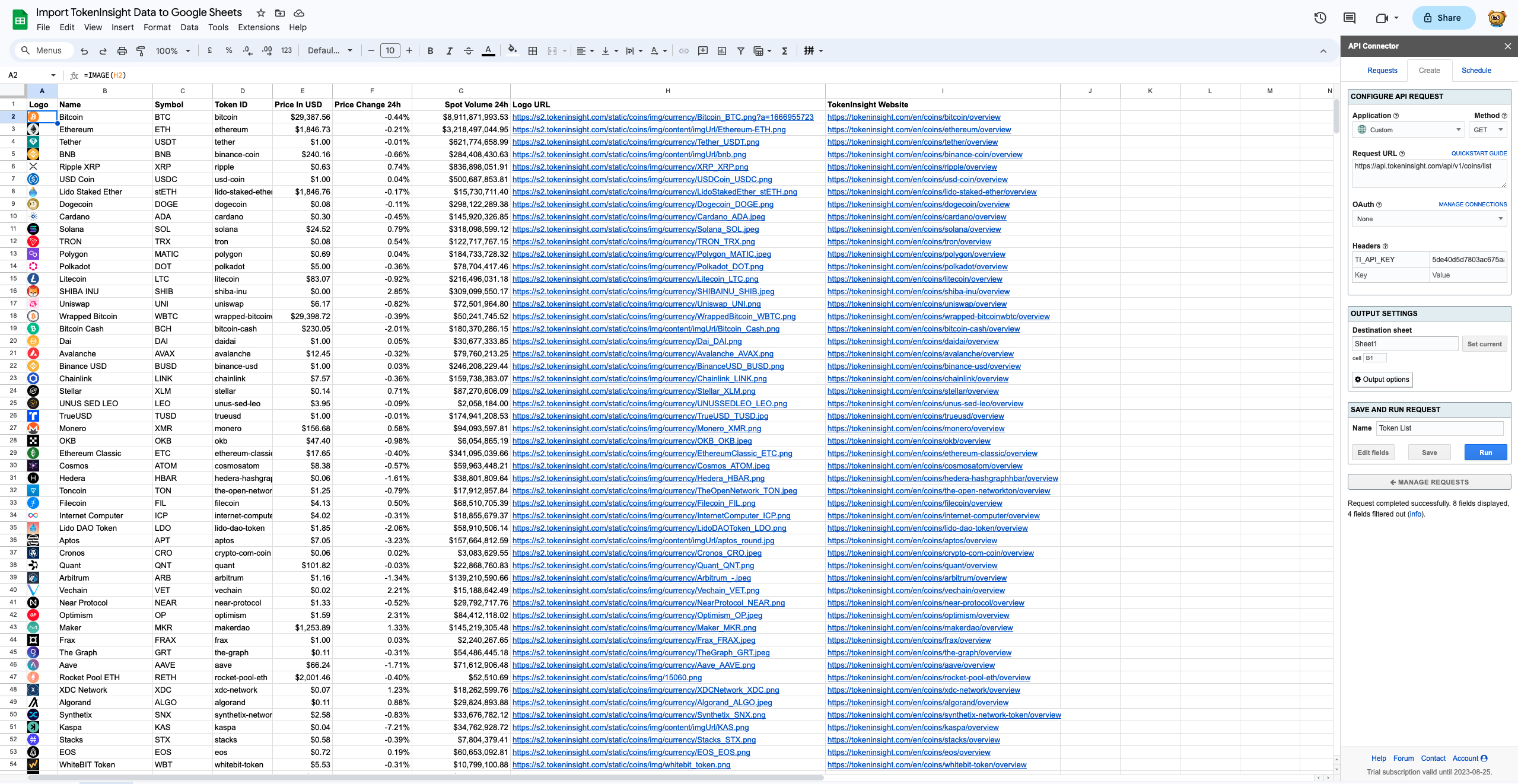
Please note that, in order to display the logos, I specifically made the data start from cell B1. Except for A1 as the header, you can directly use the formula A2=IMAGE(H2) to display the logo images in column A.
OK, by now, you should have learned how to use the TokenInsight API to fetch cryptocurrency data from our official website and display it in Google Sheets.
The example provided (https://api.tokeninsight.com/api/v1/coins/list) does not use any parameters. However, if there are parameters involved, here's how you can handle it. By reading the documentation, we can find that in the mentioned example, without any parameters, the default response includes the top 300 cryptocurrencies. But what if we want to retrieve the top 1000 cryptocurrencies?
According to the API documentation, you can find a parameter called "limit." We can add this parameter with a value of 1000. Once added, you will notice that the URL on the right side of the documentation will change accordingly.
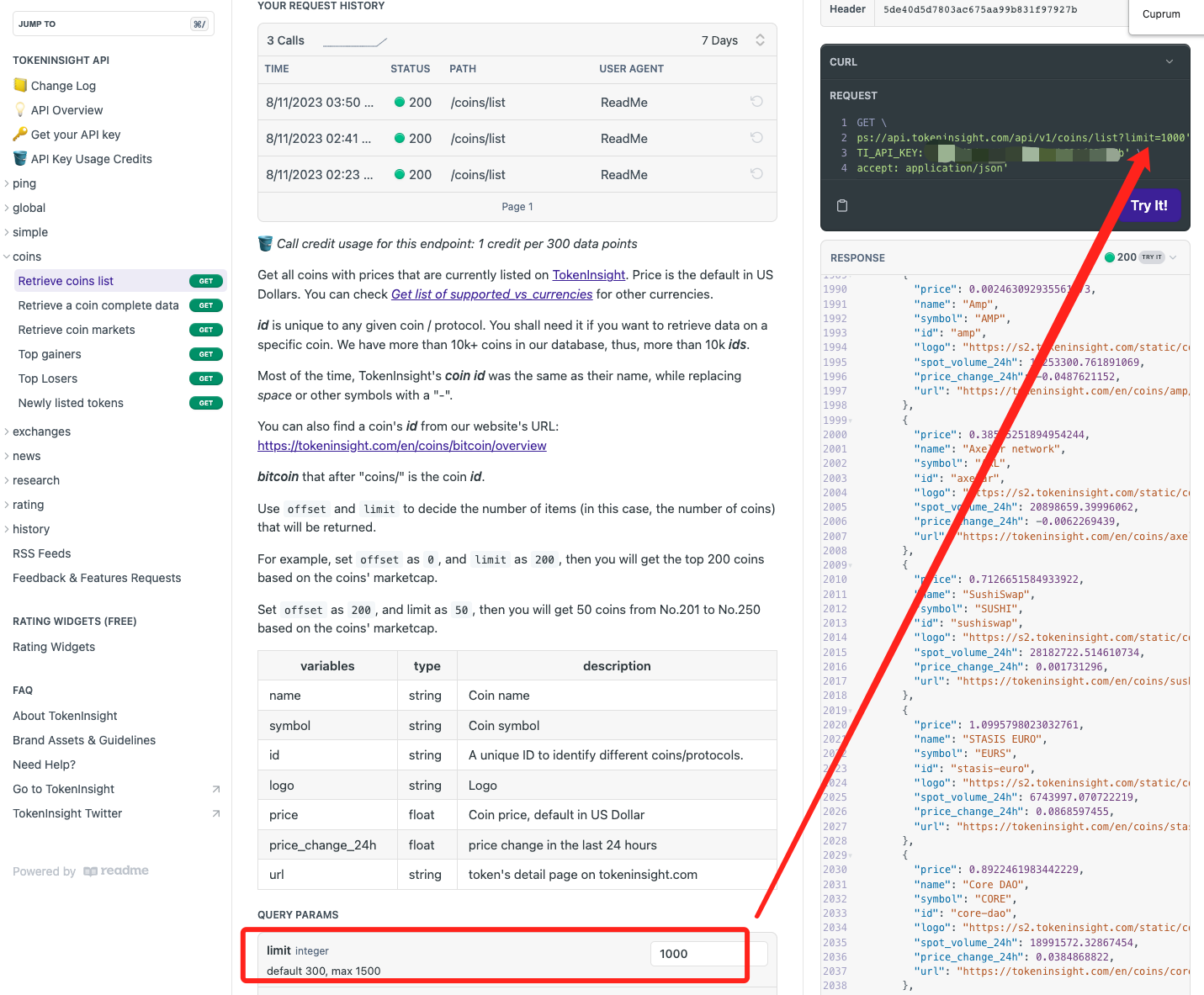
You can replace the old URL https://api.tokeninsight.com/api/v1/coins/list with the new one https://api.tokeninsight.com/api/v1/coins/list?limit=1000 to get 1000 cryptocurrencies instead of just 300 of them!
The example I used in this article can be visited via https://docs.google.com/spreadsheets/d/1i4US-pAPhe05iZrJNiX4lF7Es4L_3fOp2dMYHLPjb_c/edit?usp=sharing.
TokenInsight Crypto API has many endpoints that you might need, including the global status of the crypto market, top gainers and losers, and newly listed tokens. Some specific data that can be obtained through TokenInsight Crypto API include:
여러 가지 TokenInsight API 플랜을 보려면 여기를 클릭하세요.
TokenInsight API 문서를 보려면 여기를 클릭하세요.
무료로 TokenInsight API 키를 받고 API를 시험해보려면 여기를 클릭하세요.
API 사용 시 도움이 필요한 경우에 연락하려면 api@tokeninsight.com로 이메일을 보내거나 https://t.me/tokeninsight_api로 직접 가입하세요.
 앱으로
앱으로